


TV Cast - Roku Remote & All
3.8142.00 Reviews
App Specs
- Version
- 1.30.9
- Updated On
- License
- Free
- Downloads
- 100,000+
- Developer
- FlyMobile
- Categories
- Tools
- Platform
- Android
Screenshots
 Analysis by AppCompare
I like the idea behind TV Cast - Roku Remote & All because it brings two jobs together: sending photos and videos from a phone to a television, and using that phone as a remote. In my experience, this kind of tool is most useful when I want to show something quickly without searching through a television’s menus. It feels more direct than moving files around or trying to remember where a television’s built-in casting option is hidden.
FlyMobile presents the app as a free tools app for Android, with a Everyone age rating. It has reached over 100 thousand installs and holds a 3.8 average from more than 700 ratings, which suggests a useful but not universally smooth experience. I would describe it as a practical helper rather than an essential replacement for every television remote. Its value depends heavily on how well the phone, television, and home network cooperate.
The current version is 1.30.9, and the app runs on Android 7.0 or later. That relatively broad system support makes it accessible to people using older phones, although compatibility is not the same thing as a guaranteed connection to every television. I would check the basic setup before relying on it for an important presentation, family gathering, or movie night.
How TV Cast feels in everyday use
I’d judge this app by whether it makes sharing something from my phone feel easier, not by whether it replaces every button on a television remote. That distinction helps set realistic expectations before trying it: the phone and TV still need to find each other, and the app is most appealing when casting and basic control are both useful in the same moment.
Speed expectations when starting a cast
The first thing I notice with a casting utility is not the number of buttons on screen; it is how quickly I can get from opening the app to controlling the television. Here, the sensible expectation is a short setup routine rather than instant magic. The phone has to identify the television, establish a connection, and then handle the selected photo or video. If the television is already awake and the devices are on the same home network, the process should feel much more natural than starting from a completely cold connection.
I would not judge the app solely by the first few seconds after launch. Network discovery can make any remote or casting app appear slower than a physical remote, especially when several compatible devices are present. The useful question is whether the connection becomes convenient once the correct television is selected. For casual use, that distinction matters: a small delay during discovery is tolerable, while repeatedly losing the connection after every action becomes frustrating.
For the smoothest start, I would open the television first, confirm that the phone is connected to the intended home network, and keep the app visible while pairing. This avoids a common mistake: assuming that a phone using mobile data or a guest network will automatically see a television connected elsewhere. The network arrangement is part of the experience, not a minor technical detail.
Worth Reading Before You Choose

EA SPORTS FC Mobile 26 Is a Bigger Football Game, but It Takes Time

Flipboard Shows What News Apps Must Do Beyond the Feed

Switching to Android Auto Means Rethinking Your Driving Routine

Google Calendar Makes a Crowded Week Easier to Manage

Ludo King Makes the Most of the Minutes Between Plans

Baby Panda World Brings Quick Play to Modern Phones, but Its Game Library Feels Busy
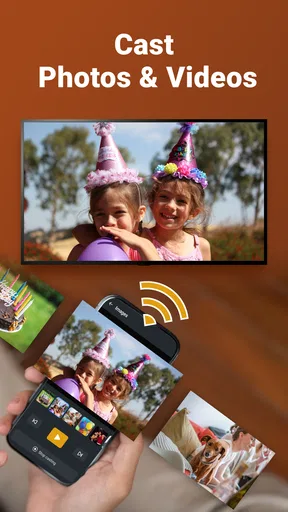
The casting workflow is particularly appealing for personal photos. Instead of passing the phone around, I can put an image on the larger screen and keep the handset in my hand. That is useful for showing travel pictures, comparing images, or letting several people watch a short clip together. The benefit is less about advanced media management and more about reducing the number of steps between a file on the phone and a shared screen.
What happens during heavier use
Short sessions are the natural territory for this app. Showing a handful of photos, checking a video on a larger display, or using the phone to navigate a television should place less strain on the whole setup than attempting an extended viewing session with a busy network. I would approach longer or more demanding use with realistic expectations, because the phone is acting as a controller and casting companion while the television remains dependent on its own network connection.
A useful habit is to prepare the media before connecting. If I am showing a group of photos, I would select them in advance rather than searching through the gallery while the television is waiting. This makes the session feel faster and also reduces the chance of accidentally casting the wrong item. It is a small workflow improvement, but it matters when several people are watching and every pause feels longer.
Video use can expose weaknesses that are invisible during remote control. A command such as pause or volume adjustment is tiny, while a video requires a sustained relationship between the phone, app, television, and network. If a clip hesitates, I would first simplify the situation: stop other heavy network activity, keep the app in the foreground, and reconnect if necessary. I would not assume immediately that the app itself is broken.
There is also a practical trade-off in using a phone as a remote. It is convenient because the phone is usually nearby, but it is not always as quick as a physical remote for repeated navigation. A physical remote has dedicated controls, does not depend on an unlocked phone, and is available to everyone in the room. The app becomes more attractive when I need both media casting and remote access in the same session, not when I only want to change the volume once.
Reliability and recovering from a failed connection
The 3.8 average rating tells me to keep reliability expectations balanced. I would not call that a warning to avoid the app, but I also would not treat it as evidence of flawless performance across every Android phone and television combination. Casting tools live at the intersection of different devices, network settings, television software, and phone behavior, so the same app can feel dependable for one household and temperamental for another.
When a connection fails, I prefer a simple recovery order. First, I would make sure the television is still on the intended input and that the phone has not silently switched networks. Next, I would close and reopen the connection inside the app rather than repeatedly tapping the same control. If that does not help, restarting the television and phone can clear a temporary discovery problem. These steps are not glamorous, but they are faster than changing several settings at once without knowing what fixed the issue.
I would also avoid locking the phone immediately after starting a sensitive casting task. Some phones restrict background activity to save battery, and that can interrupt apps that depend on an active connection. I cannot promise that keeping the screen awake will solve every interruption, but it is a sensible test when the connection drops after the phone becomes idle.
Recovery matters more than a perfect first connection. A tool can still be worthwhile if it occasionally needs a reconnect but makes that reconnect understandable. Conversely, even a fast app becomes tiring if it leaves me guessing whether the television, network, or phone is responsible. My advice is to try a short, low-pressure session soon after installation. That gives a household a chance to learn its own connection pattern before depending on the app.
Device constraints and compatibility decisions
The minimum operating system is Android 7.0, so owners of older Android phones are not automatically excluded. That is helpful for people who keep an older handset near the television as a dedicated controller. Still, the operating system requirement only describes the phone side. The television must also support the type of connection the app expects, and the home network must allow the devices to find one another.
This is where I would be careful with the word “universal.” A phone-based remote can cover many everyday actions, but it does not necessarily reproduce every specialized button or setting found on a television’s original remote. If I need a rare input command, a service-specific shortcut, or a control that only the manufacturer’s own app exposes, the original remote or official companion app may be the better choice.
Older phones may also feel less comfortable during longer sessions. Even when the app itself is not demanding, switching between a gallery, a video, and a remote interface can be less responsive on dated hardware. I would keep the phone charged before a long viewing session and avoid treating it as a permanent remote if it is already struggling with ordinary multitasking.
There is a privacy-related practical point that is easy to overlook: the phone screen may display the media I am preparing to cast, while the television displays the selected item. I would preview the chosen photo or video before sending it, especially when handing the phone to a child or guest. The app’s Everyone rating makes it suitable for a broad audience, but age suitability does not remove the need for sensible control over personal media.
Where it fits against the usual alternatives
The obvious alternative is the television’s physical remote. That remains better for quick navigation, repeated channel or volume changes, and situations where several people need control. It also works without asking anyone to unlock a phone. I would choose the physical remote when the television is the only concern.
The second alternative is the television manufacturer’s official app. That may offer deeper device-specific controls and a more predictable relationship with one particular television. If my priority is advanced settings or a long-term replacement for the original remote, I would investigate that route first. The advantage of FlyMobile’s app is the combined focus on casting personal media and providing remote-style control, rather than requiring me to switch between unrelated tools.
Built-in phone casting features can also be simpler when they are already available and compatible. They may be preferable for someone who only wants to send a video and never use a remote interface. I see this app as more useful for people who want a single place to start media playback and manage basic television interaction, while accepting that a broader tool may not be as deeply tailored as an official one.
The free download lowers the barrier to testing it, but in-app purchases range from $4.99 to $19.99 per item. I would pay attention to the purchase screen and decide whether the extra value matches my usage before spending anything. For occasional photo sharing, the free experience may be enough to make a decision. For frequent use, I would compare the cost with an official television solution or simply continue using the physical remote if that already meets my needs.
Three workflows that make the app more useful
My first recommended workflow is the “prepare, connect, present” routine. I would choose the photos or video on the phone, remove anything I do not want to show, connect to the television, and only then hand the phone to another person. This prevents the audience from watching me browse through unrelated content and reduces accidental selections.
The second is to treat the app as a backup remote rather than throwing away the original immediately. I would keep the physical remote nearby during the first few sessions. That way, if discovery fails or the phone needs charging, the evening does not stop. Once I know the app behaves consistently with my television, it can become the more convenient option for media sharing.
The third is to test the exact room and network where the app will be used. A connection that works beside the router may behave differently in a bedroom or living room with a weaker signal. Testing from the usual viewing position reveals whether the app is practical for real use, instead of proving only that the phone and television can connect under ideal conditions.
These workflows also clarify who should skip it. I would not recommend making it the only control method for a household that needs instant access, has unreliable wireless networking, or depends on specialized television functions. I would also hesitate if the main goal is professional presentation, where a dedicated wired or manufacturer-supported solution may offer more predictable recovery.
Performance verdict for everyday households
After weighing the convenience against the setup variables, I see this as a useful secondary tool with a clear everyday purpose. It can make sharing phone photos and videos less awkward, and combining that with remote-style control is genuinely convenient when the television is compatible and the network is cooperative. The app’s broad Android support and free entry point make a trial reasonable for many households.
My performance verdict is therefore cautious but positive: expect practical speed after connection, not necessarily instant discovery; expect light media sessions to be the easiest, not assume every long video session will be perfect; and keep a recovery plan for network or device interruptions. The app is not a substitute for a physical remote in every situation, and it is not automatically better than an official television app for advanced controls.
I would recommend trying TV Cast - Roku Remote & All if you regularly want to put personal media on a larger screen and would appreciate having remote functions in the same app. I would skip it if you only need basic television navigation or if your home network regularly separates devices. For me, its strongest role is the quick shared moment: selecting a photo, putting it on the television, and controlling playback without passing cables or searching through menus. It works best as a convenient bridge between a phone and a television, not as a guaranteed replacement for every device-specific option.
Pros
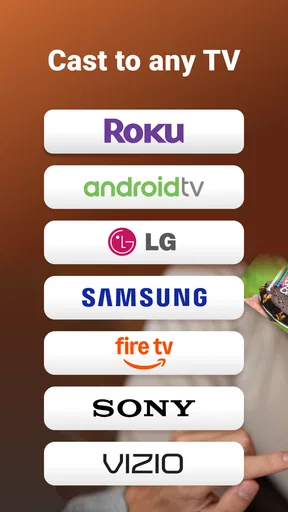
- Works with most Roku TV models and streaming players.
- Quick device discovery on the same Wi-Fi network.
- Useful keyboard for entering search terms and passwords.
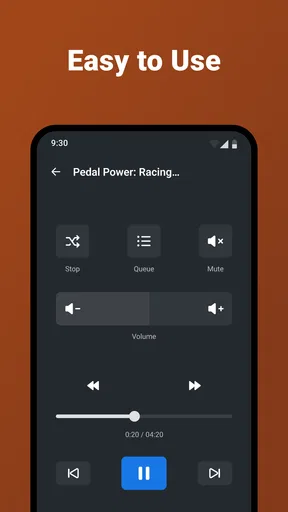
- Simple controls make navigation easy for new users.
- Convenient alternative when the physical remote is misplaced.
Cons
- Requires both devices to use the same Wi-Fi network.
- Some advanced features may require a paid subscription.
- Ad-supported interface can feel distracting during use.
- Connection may drop when the Wi-Fi signal is weak.
- Not all TV settings are available through the mobile remote.
FAQs for TV Cast - Roku Remote & All
What is TV Cast - Roku Remote & All, and what can it do?
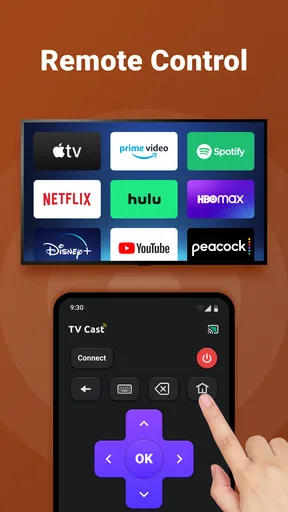
TV Cast - Roku Remote & All is designed to help you control compatible Roku devices and cast supported media from your phone to a television. During testing, its main appeal was combining remote-control functions with casting features in one app. Depending on your device and network, you may be able to browse content, adjust playback, and use your phone as a convenient replacement for a physical Roku remote.
How do I connect the app to my Roku TV or streaming player?
Your phone and Roku device generally need to be connected to the same Wi-Fi network before pairing can work. After opening the app, it typically scans for available Roku devices, allowing you to select the correct television or player. If nothing appears, check that both devices use the same network, disable any VPN, restart the app, and confirm that the Roku device is powered on and responsive.
Can I cast videos, photos, or music from my phone to Roku?
The app is intended to support casting compatible media from a mobile device to a Roku television or streaming player, but the exact experience can vary by file type, phone, Roku model, and the source application. Some services also restrict third-party casting or require playback through their official app. It is best to confirm compatibility with your preferred content before relying on it as your main streaming method.
Does TV Cast - Roku Remote & All work without an internet connection?
The app normally requires a working local Wi-Fi connection to communicate with a Roku device. Your phone and television do not necessarily need separate mobile data for basic remote functions when they share the same home network, but internet access is still needed for online streaming services and cloud-based content. It will not generally replace a physical remote when Wi-Fi pairing is unavailable.
Is TV Cast - Roku Remote & All free to use, and are there advertisements or subscriptions?
The app may be available to download without an upfront charge, but free access can include advertisements, optional upgrades, or subscription-based features. Pricing and included tools may change between Android and iOS versions, so review the store listing and in-app purchase screen before confirming payment. If you only need basic remote controls, check whether those functions remain available without subscribing.


